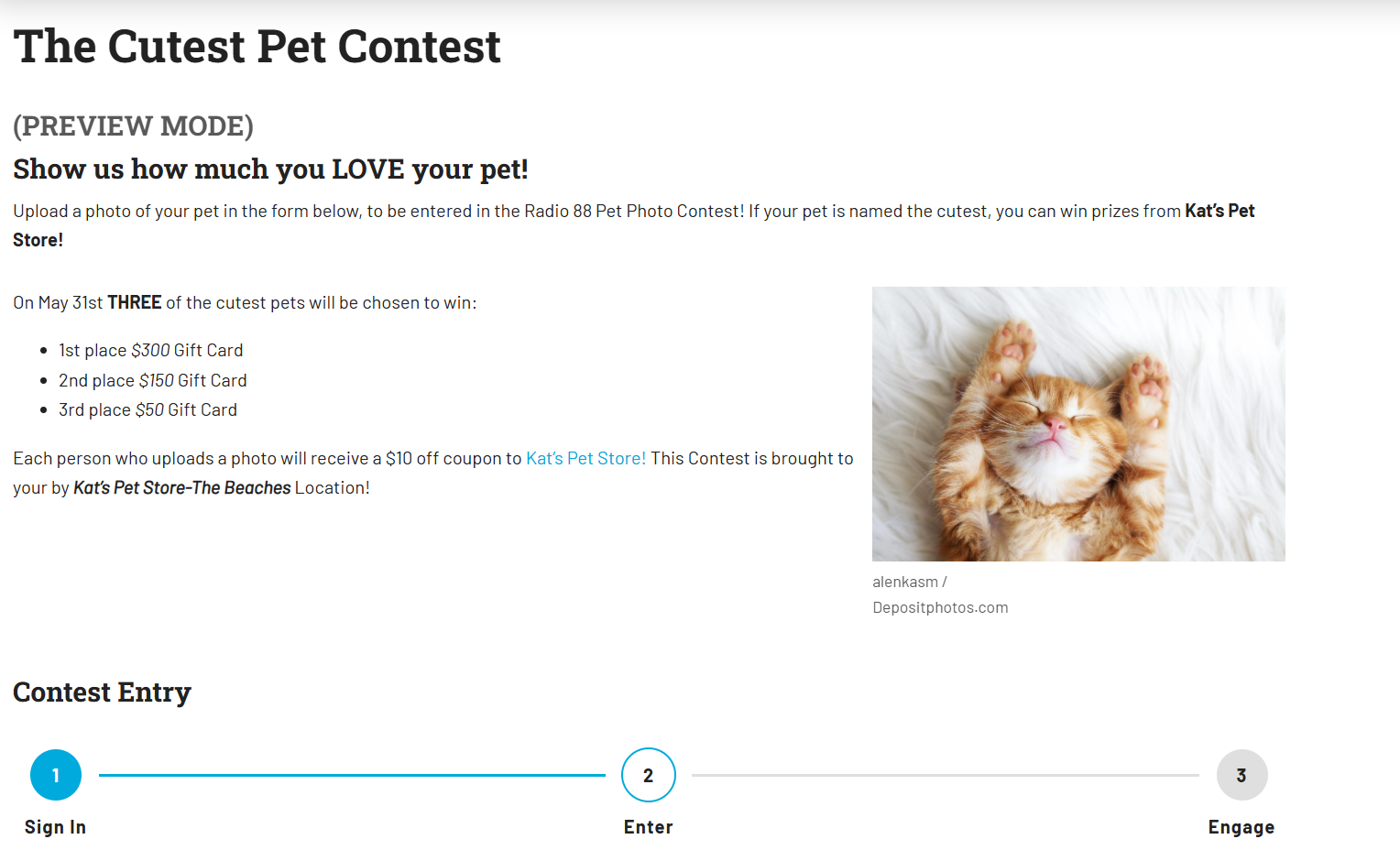
At SoCast, we’re always finding new ways to help broadcasters deepen audience connections and run smoother, more effective promotions across platforms. Contest Preview Mode in the SoCast Promotion System makes it easier than ever to review a promotion the way listeners will experience it — before it goes live, and before the entry window even opens.
With these updates, stations can confidently build sweepstakes, polls, member-only promotions, and user generated content contests knowing the page, entry steps, and rules will look and behave as intended when the campaign starts.
What’s New: A Working Preview of the Full Contest Experience
We’ve added a dedicated Preview Mode to the contest workflow, so promotions teams can walk through a contest as a listener without publishing it or waiting for the start date.
- Preview Before Publish or Start: Open an unpublished contest or a contest scheduled for the future and see it as an open, enterable page.
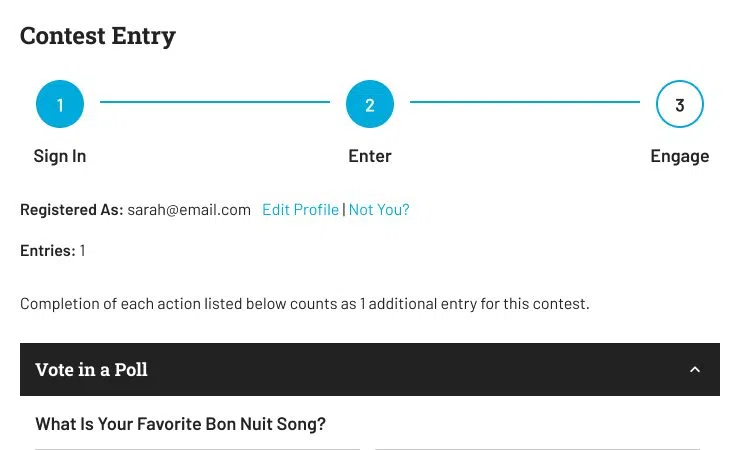
- Walk the Full Entry Flow: Sign in, complete the entry form, try polls, and test fan voting — the same steps your audience will take.
- See Upcoming Entry Actions: Actions scheduled to start later still appear in preview, so you can check every step of a multi-action contest before it goes live.
- Members-Only Contests Included: Preview member-only promotions without creating a dummy listener account or changing your settings.
- Stay in Preview as You Navigate: Rules, “Not You?”, and the rest of the contest page keep you in Preview Mode so you can review the full journey, not just the first screen.
- Clear Preview Indicator: A Preview Mode label on the page makes it obvious you are reviewing a staff preview, not the public contest.
- Staff-Only and Listener-Safe: Preview Mode is available to staff from the contest editor. Your audience never sees it, and a live contest is not required to test the experience.
Why It Matters: Launch With Confidence, Not Workarounds
Preview Mode turns contest setup into a rehearsal instead of a guess. For promotions and programming teams, that means catching a missing field, a confusing step, or a rules-page issue before listeners find it on launch day. For your audience, it means the contest they click into is the one you already walked through — not a first public test.
When preview “just works,” your team can stop publishing early, inventing dummy accounts, or waiting until the entry window opens to confirm the experience. Sponsors get a cleaner launch, support tickets go down, and your team can focus on the on-air story and the prize package instead of last-minute fixes.
If you’re already using SoCast’s Promotion System, you’ll see these improvements when you click Preview from the Contest Editor — including unpublished contests and contests that have not started yet.
Ready to Launch?
Open a contest in Promotions, click Preview, confirm you see Preview Mode, and walk through sign-in, entry, rules, and any voting or poll steps you plan to offer. When you are happy with the flow, publish or wait for the scheduled start — listeners will only see the live contest.




Comments